


For every page, you will need to add a CSS sheet reference:
<link rel=”stylesheet” href=”https://prospect-form-plugin.2u.com/assets/embed-form-styles.css”/>
If possible, this should be added to the of your page, but can also be added to body, immediately before the embed code. This file is the same for every form
Form Embed Code:
The embed code is unique based on the form. You can use the same embed code when placing the form on multiple pages (with one form per page). If you will be placing the same form multiple times on a page, please let us know and we can provide additional embed codes.
<div id=”twou-form-2256-prkttv” class=”self-mount-plugin” data-template-type=”embed-inline” data-package-type=”fetch” data-package-id=”2256″ data-grouping=”uta-umt”></div><script src=”https://prospect-form-plugin.2u.com/cask-latest/lead.form.plugin.js”></script>
The anchor (Jumplink) reference for the form is:
<a href=”#twou-form-2256-prkttv”>Link text here</a>
Launch Process
Types of Launches:
For questions about launch assets (what we can change vs what we can’t), Tyler put together this documentation you can reference.
Standard Course Launch
There are 6 main components to launching a standard course on Getsmarter:
1. URL Creation + Spree Setup
Before you get started on the launch, it is our team that creates the URLs and obtains the UUID. To do this we use the URL Builder 2.0 Doc.
Walking through URL Creation and setting up the Spree instance
2. Thank You Page/Info Pack/HTML Page/Prospectus
Walking through building out a info pack/thank you page in presentations
3. Taxi Forms
Recording of building all three forms for launch
For an Exec Ed standard course launch, we create three forms:
- An embeddable lead form (ELF): This utilizes the Embeddable Lead Forms (ELF) for School Partners Spec Doc
*NOTE: You must remember to change out the ‘Program of Study’ at the top of the form on Launch Day
We then provide the instructions and generated code snippet to the school stakeholders:
- A full taxi form (for edX page): This utilizes the 1-Step Form Spec Doc
*NOTE: You must remember to change out the ‘Program of Study’ at the top of the form on Launch Day
We then add the Form ID to the edX GEAG instance in the Titan CMS
- A full taxi form for Project Boomerang PLPs: This utilizes the PLP Form Spec
*NOTE: You must remember to change out the ‘Program of Study’ at the top of the form on Launch Day
4. Paid Landing Page (PLP)
You will build the PLP for launch but the process is done through the Project Boomerang initiative.
5. Course Page
Walking through building out a course page in Titan
This course page is build in the Titan CMS, but also needs the Titan Spree instance to be updated and published.
In the What Will Set you Apart child page:
- add this code to the Heading field:
<p>What will <span style=”color: #e51470; font-style: italic;”>set you apart</span> </p> - Use these Icons for the Icon Assets
Note: To log into Spree:
- https://www.getsmarter.com/login
- Log in with your 2U email and Spree-specific password
- You should be redirected to https://www.getsmarter.com/admin/orders
6. edX Page
Walking through building out an edX about page in the GEAG instance within Titan (Starts at the 36:15)
Stack Launch
Stack Launches look very similar to standard course launches with a couple nuanced changes. The steps below will look very similar to the steps above with some additional stack-only requirements (in green text).
1. URL Creation + Spree Setup
Before you get started on the launch, it is our team that creates the URLs and obtains the UUID. To do this we use the URL Builder 2.0 Doc.
Walking through URL Creation and setting up the Spree instance
2. Thank You Page/Info Pack/HTML Page/Prospectus
Walking through building out a info pack/thank you page in presentations
Stack-Specific: Instead of using the field ‘Modules’, use ‘Stack Modules’ and load in the 2+ exisiting courses that make up this stack. (Feel free to use OXF-OAEIPS as a reference)
3. Taxi Forms
Recording of building all three forms for launch
For an Exec Ed standard course launch, we create three forms:
- An embeddable lead form (ELF): This utilizes the Embeddable Lead Forms (ELF) for School Partners Spec Doc
*NOTE: You must remember to change out the ‘Program of Study’ at the top of the form on Launch Day
We then provide the instructions and generated code snippet to the school stakeholders:
For every page, you will need to add a CSS sheet reference:
<link rel=”stylesheet” href=”https://prospect-form-plugin.2u.com/assets/embed-form-styles.css”/>
If possible, this should be added to the of your page, but can also be added to body, immediately before the embed code. This file is the same for every form
Form Embed Code:
The embed code is unique based on the form. You can use the same embed code when placing the form on multiple pages (with one form per page). If you will be placing the same form multiple times on a page, please let us know and we can provide additional embed codes.
<div id=”twou-form-2256-prkttv” class=”self-mount-plugin” data-template-type=”embed-inline” data-package-type=”fetch” data-package-id=”2256″ data-grouping=”uta-umt”></div><script src=”https://prospect-form-plugin.2u.com/cask-latest/lead.form.plugin.js”></script>
The anchor (Jumplink) reference for the form is:
<a href=”#twou-form-2256-prkttv”>Link text here</a>
- A full taxi form (for edX page): This utilizes the 1-Step Form Spec Doc
*NOTE: You must remember to change out the ‘Program of Study’ at the top of the form on Launch Day
We then add the Form ID to the edX GEAG instance in the Titan CMS
- A full taxi form for Project Boomerang PLPs: This utilizes the PLP Form Spec
*NOTE: You must remember to change out the ‘Program of Study’ at the top of the form on Launch Day
4. Paid Landing Page (PLP)
You will build the PLP for launch but the process is done through the Project Boomerang initiative.
5. Course Page
Walking through building out a course page in Titan
This course page is build in the Titan CMS, but also needs the Titan Spree instance to be updated and published.
Stack-Specific: Stacks are built within ‘Course Stacks’ not ‘Short Courses’

In the What Will Set you Apart child page:
- add this code to the Heading field:
<p>What will <span style=”color: #e51470; font-style: italic;”>set you apart</span> </p> - Use these Icons for the Icon Assets
Note: To log into Spree:
- https://www.getsmarter.com/login
- Log in with your 2U email and Spree-specific password
- You should be redirected to https://www.getsmarter.com/admin/orders
6. edX Page
Walking through building out an edX about page in the GEAG instance within Titan (Starts at the 36:15)
Stack-Specific: Stacks may not already have a GEAG Detail 2 Child page, but you can create one:
- Add a new child page
- For the field ‘Layout’, a dropdown will appear, select “GEAG Detail 2” under the “Short Course”
- Add in all the content
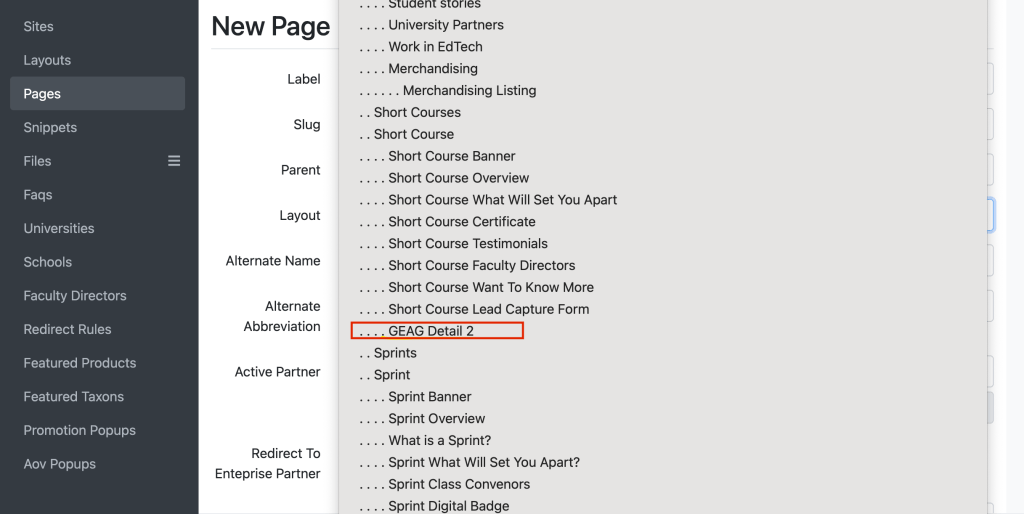
(Feel free to use the OXF-OAEIPS GEAG instance as a reference)
Net-New Partner Launch
Net-new partner launches can follow standard launch process above but also include initializing and creating the Brand and School instances in Presentations as well as the University Partner page (UP page) in Titan.
Nick walking through creating brand instance, school instance, and UP page for new partner.